Live demo
Try SimpleScrumTools with a live demo
Open a working organization with projects, Scrum Teams, finished sprints and one in progress. No account and no card. The demo is read-only, so look at anything — nothing you do is saved.
By opening the demo, you agree to the End User License Agreement. The Privacy Policy explains how we handle your data.
What is inside
The demo is a fictional company that has run Scrum in SimpleScrumTools for a few months. Its people, projects and history are invented. The screens are the real product.
- Several projects across two portfolios, each with its own Product Goal and backlog.
- Two Scrum Teams with Product Owners, a Scrum Master and Developers in different time zones.
- Finished sprints with their Sprint Goals, Increments, reviews and retrospectives on record.
- A sprint in progress with a board mid-sprint and the next sprint already scheduled.
A tour of one sprint
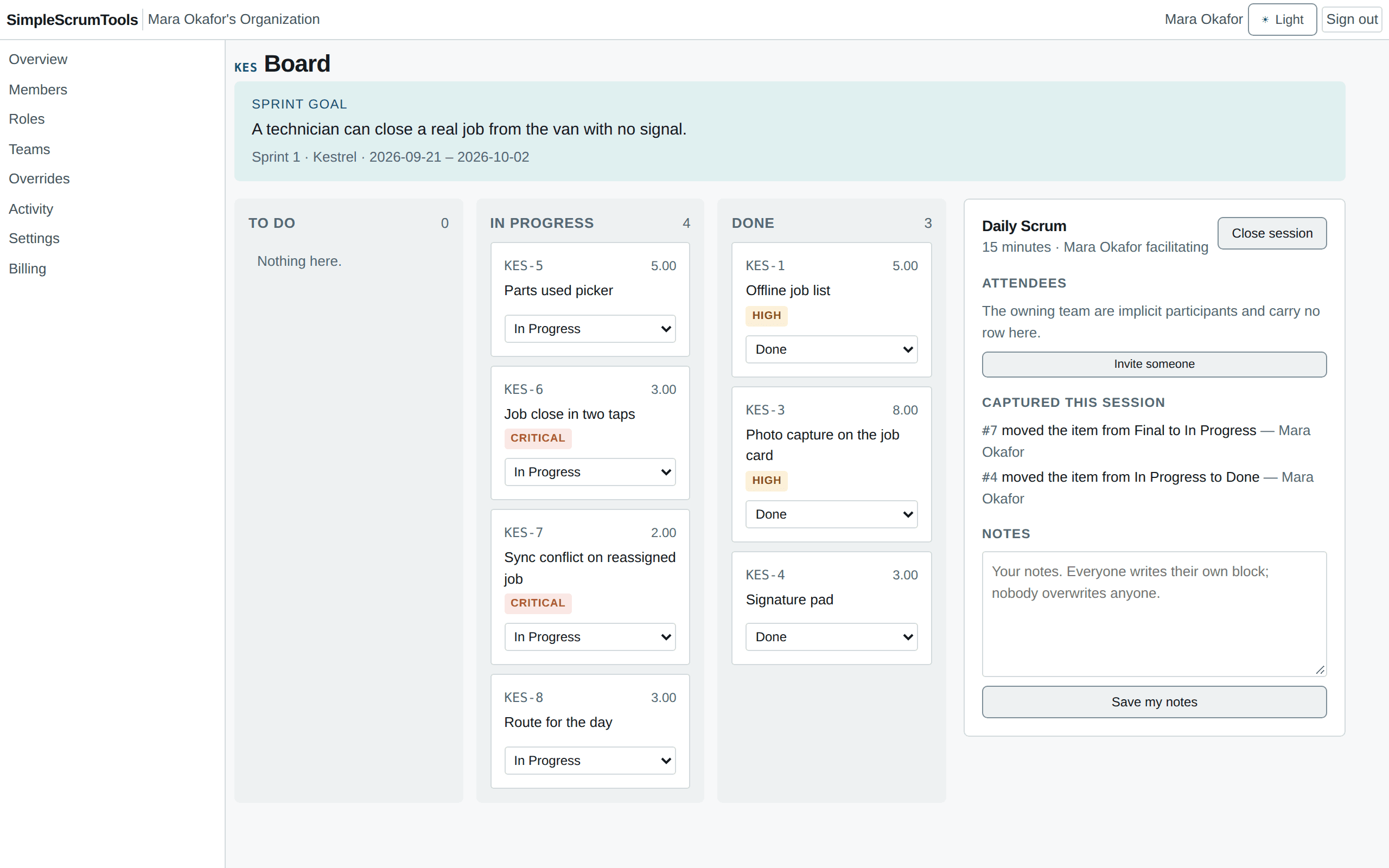
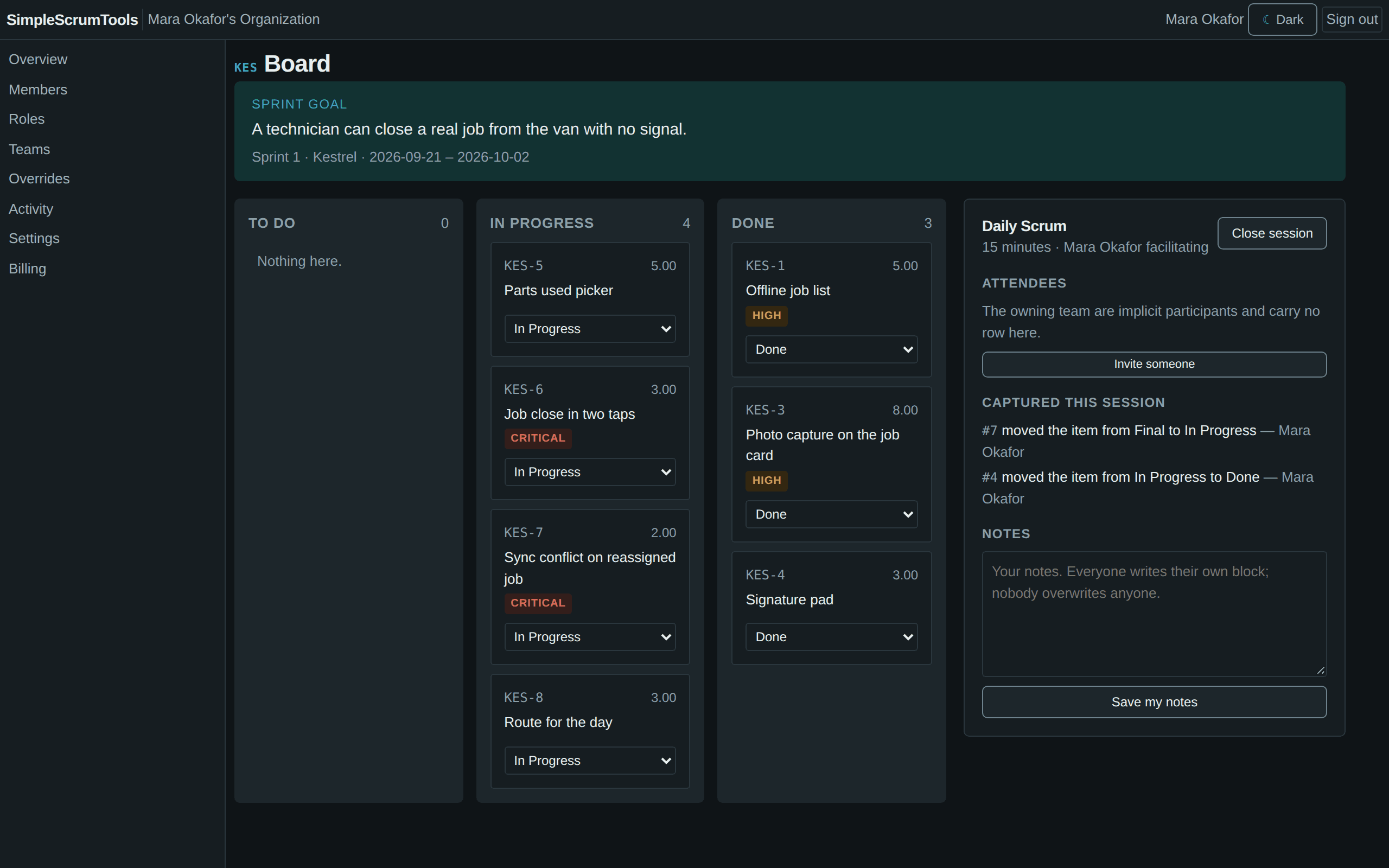
The board and the Daily Scrum
What to look for:
- The board follows the active sprint. You do not pick a sprint to see it.
- Open the Daily Scrum beside it. The session lists the item changes made while it was open.
- A Blocked pill marks any item that waits on unfinished work or an open impediment.
Sprint Planning
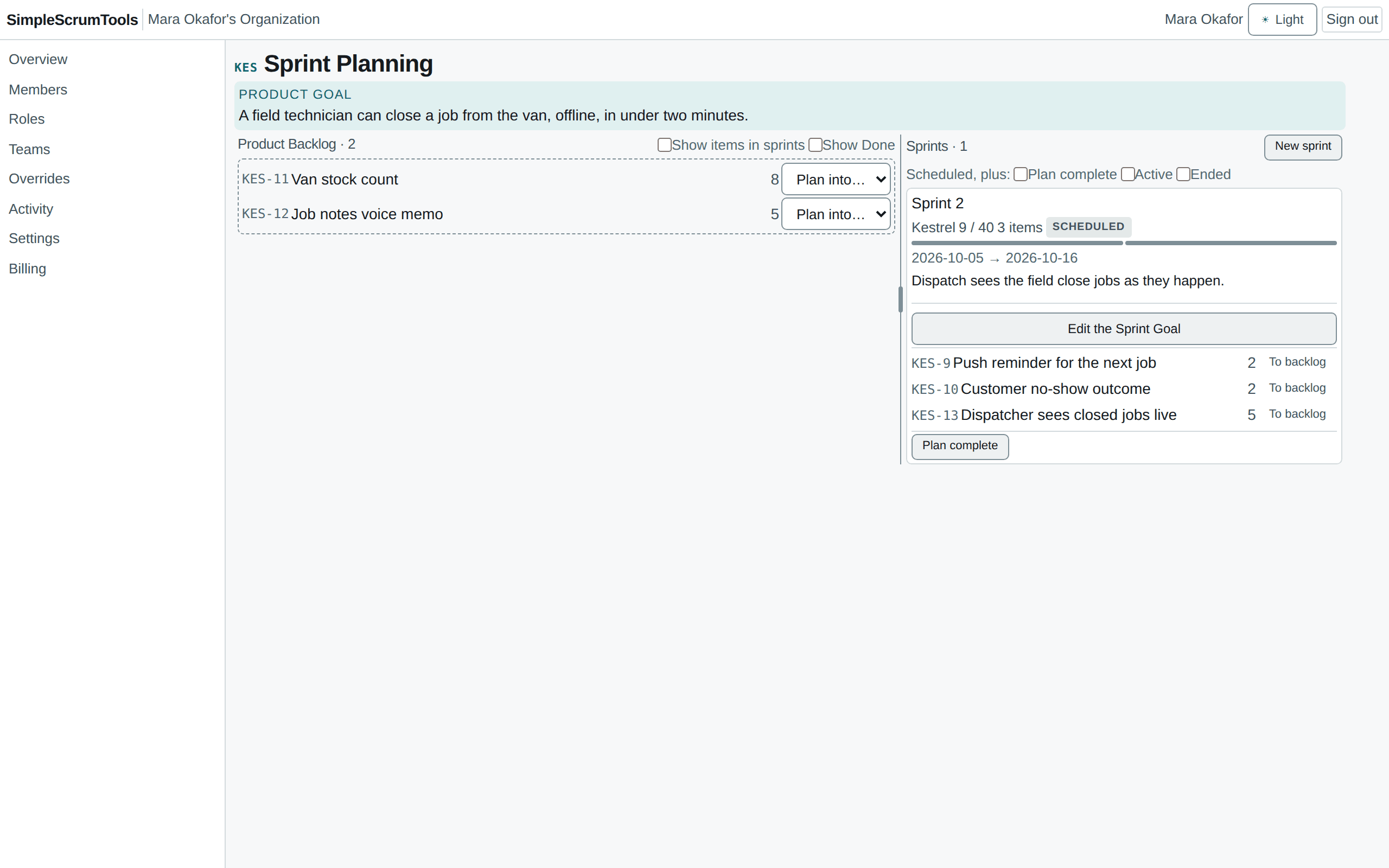
What to look for:
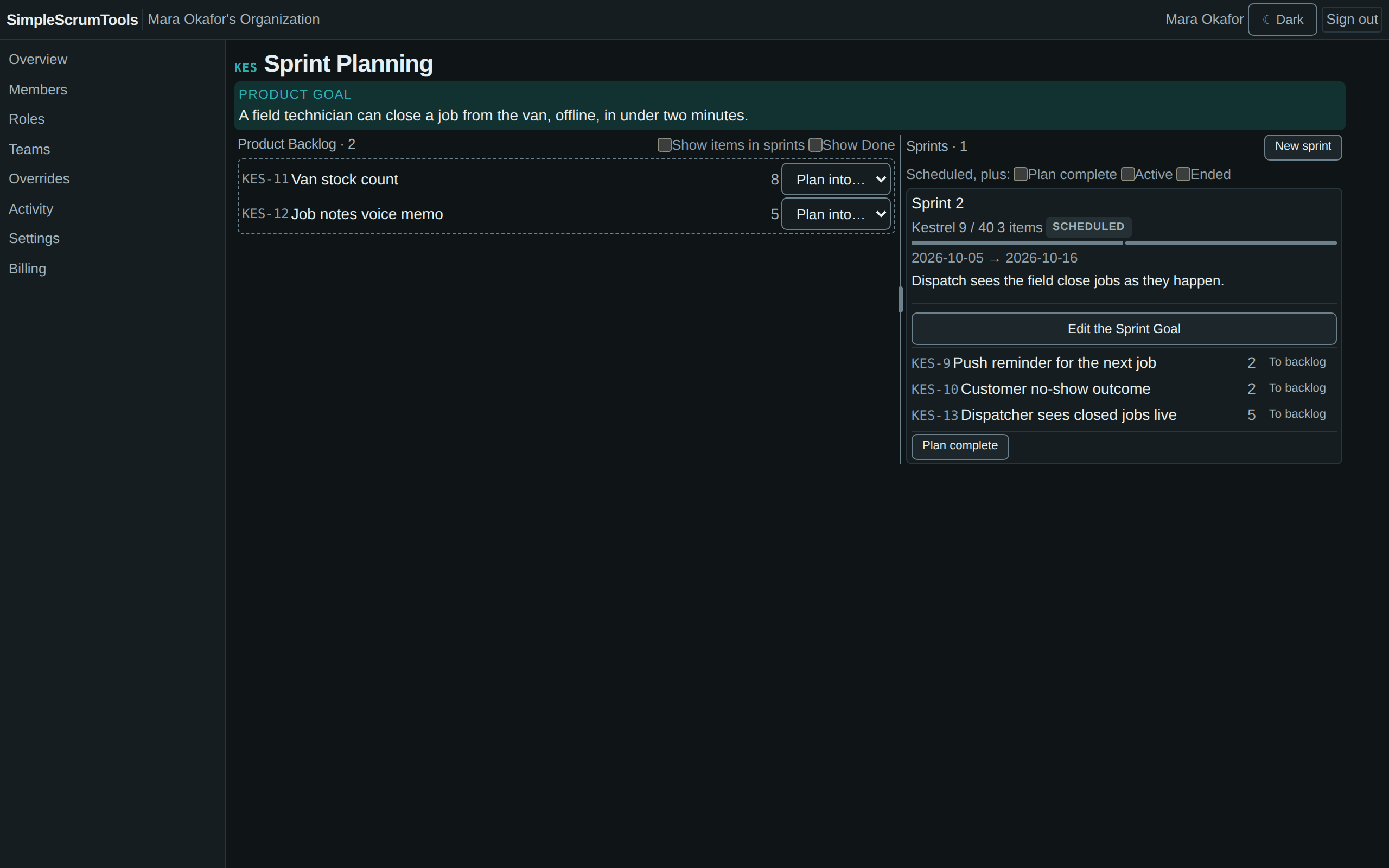
- The groomed backlog sits beside the sprint being planned.
- Capacity, blocked items and oversized items show as warnings, not as walls.
- A sprint cannot start without a Sprint Goal. Look for it on each sprint.
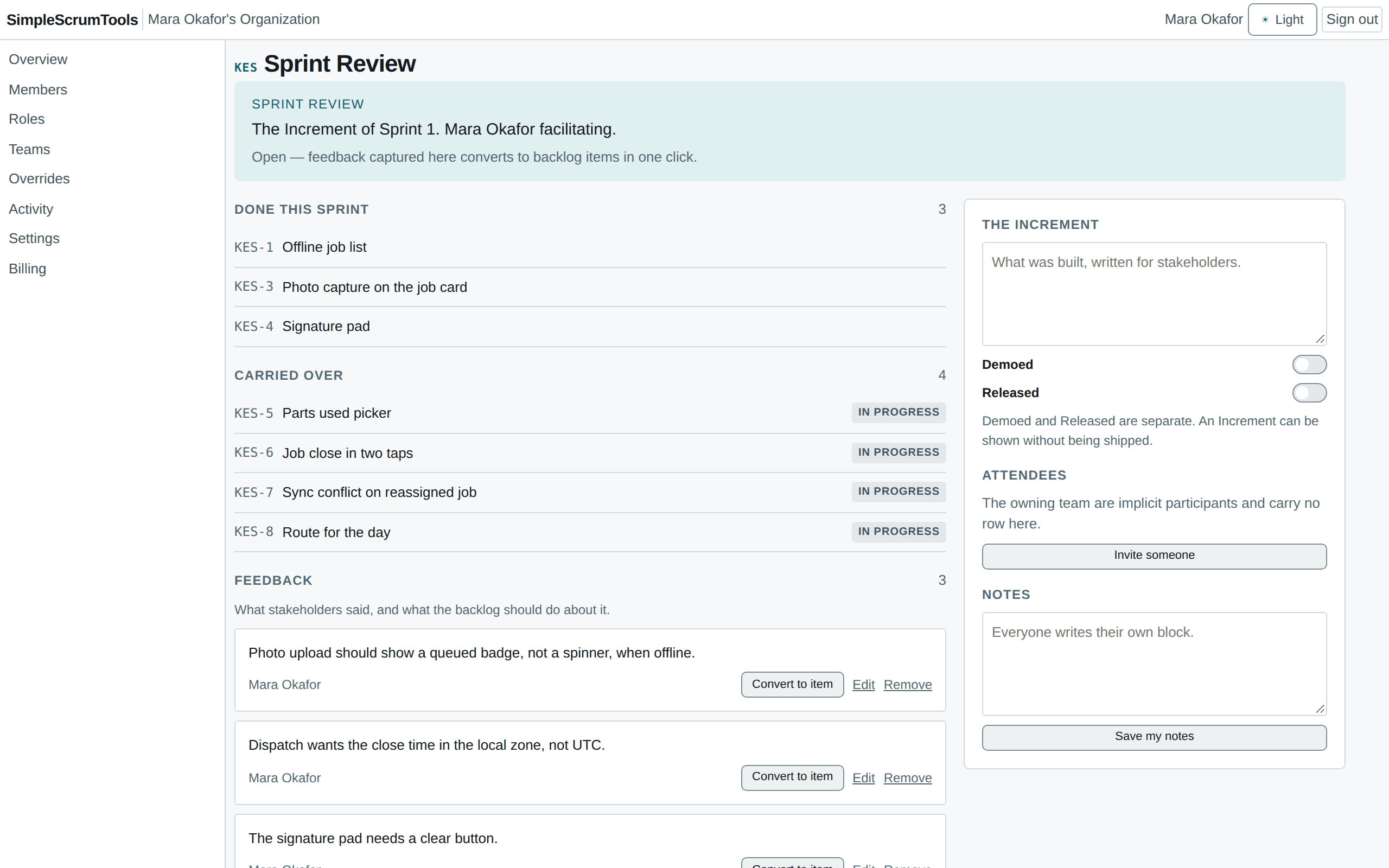
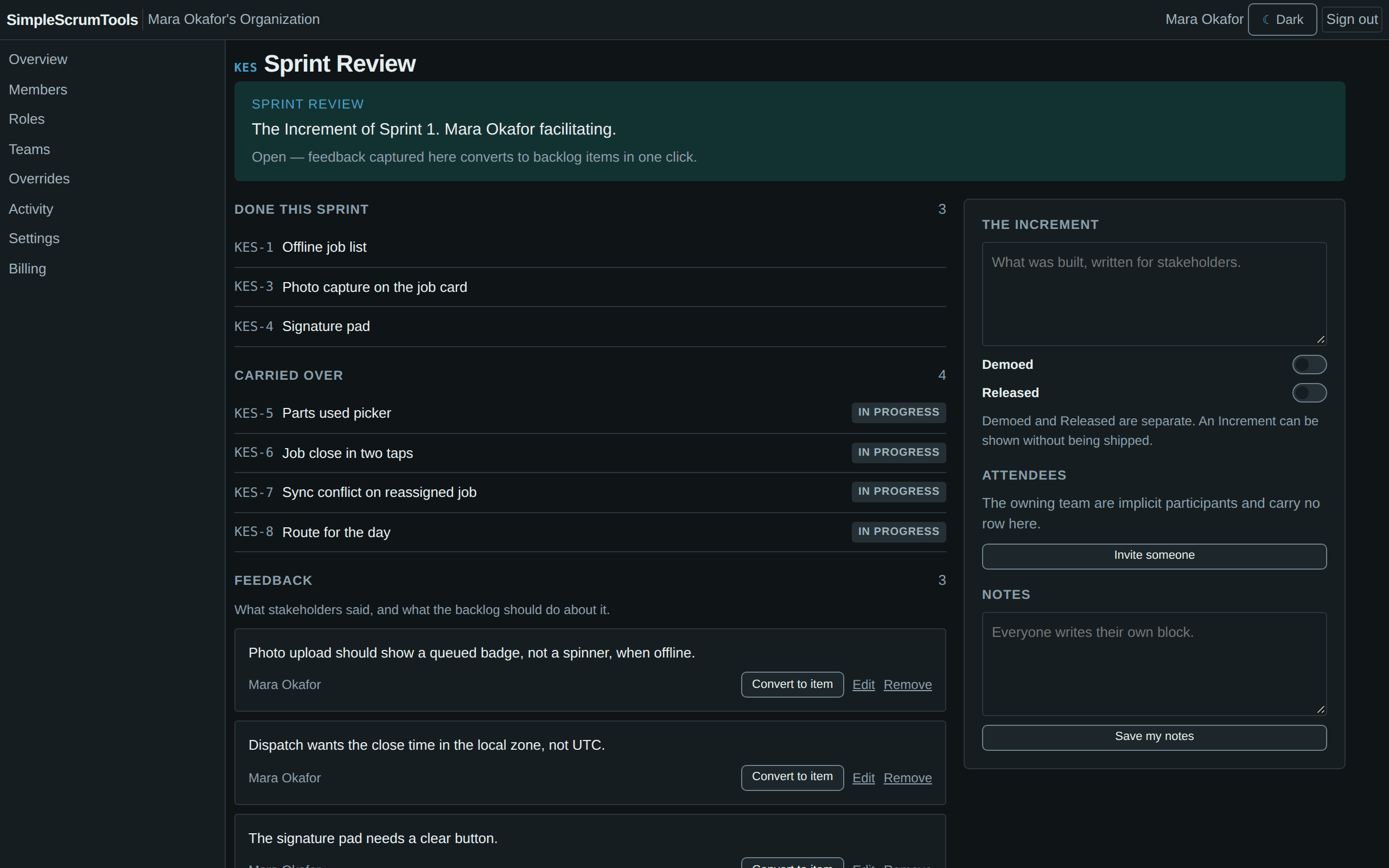
Sprint Review and the Increment
What to look for:
- The Increment is the list of the sprint’s Done items. Nobody maintains it by hand.
- Feedback from stakeholders is captured on the review and becomes a backlog item in one click.
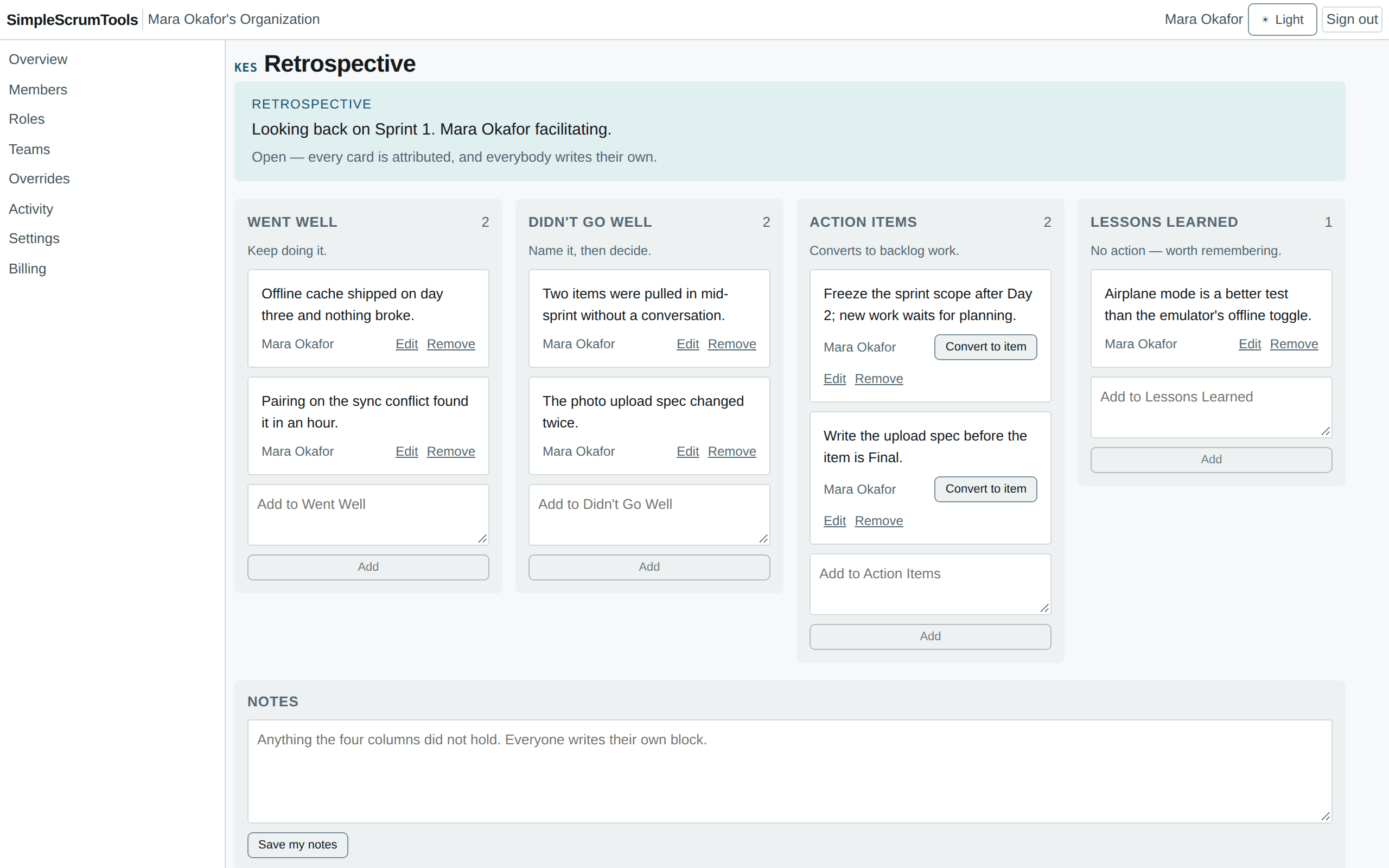
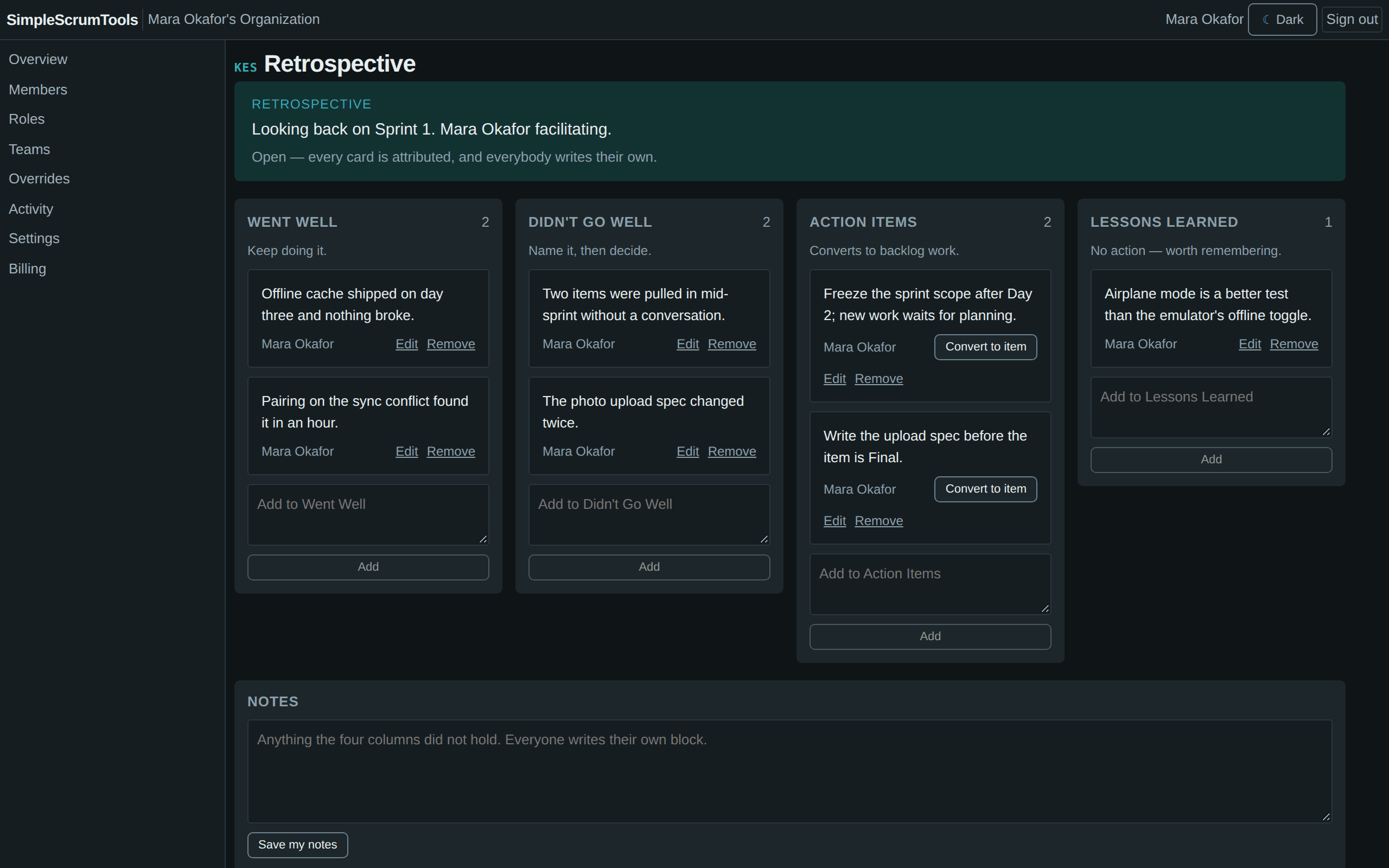
The Sprint Retrospective
What to look for:
- Four columns, one card per author, so nobody overwrites anybody.
- An action item becomes a backlog item in one click, linked back to the retrospective.
More to open
The Product Backlog
Items in the order they will be worked, grouped by phase. Open any item to see its history, its questions and its Definition of Done checklist.
How it worksItem history
Every change to an item, field by field, with who made it and when.
How it worksActivity
The organization’s feed: what happened across projects and teams, newest first.
How it worksRoles and permissions
Eight capability bundles, granted by role, on one screen. A team role covers only that team’s work.
How it worksDefinition of Done
A checklist per project. An item cannot move to Done until its checks pass.
How it worksTeams and time zones
Each person sees times in their own time zone. Sprints start on a Monday in the team’s time zone.
How it works
What the demo does not do
Every visitor shares the same demo organization, so it is read-only. Every button is there, but a change is refused with a note that this is the demo. The data is reset regularly, so it always has a sprint in progress. Please do not type personal information into it.
See it for yourself.
By opening the demo, you agree to the End User License Agreement. The Privacy Policy explains how we handle your data.